Completed forms
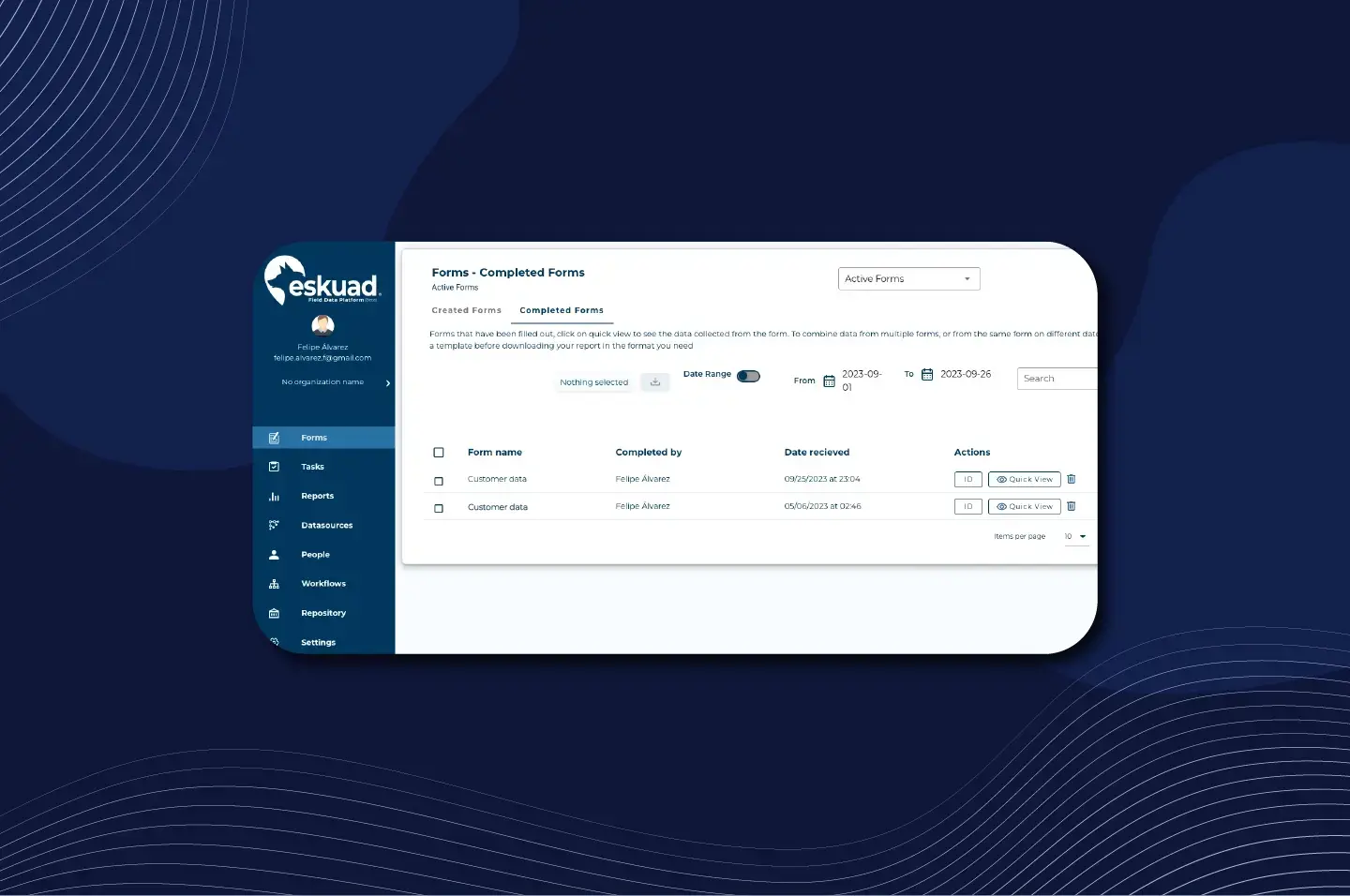
Once you’ve completed a form, your data remains secure and easily accessible in Eskuad. Here’s how you can access and manage your completed forms:
Email Reports
Once you submit a form, you’ll automatically receive a backup report in your email. However, you can also access and view your forms instantly on the web application.
Web Application
-
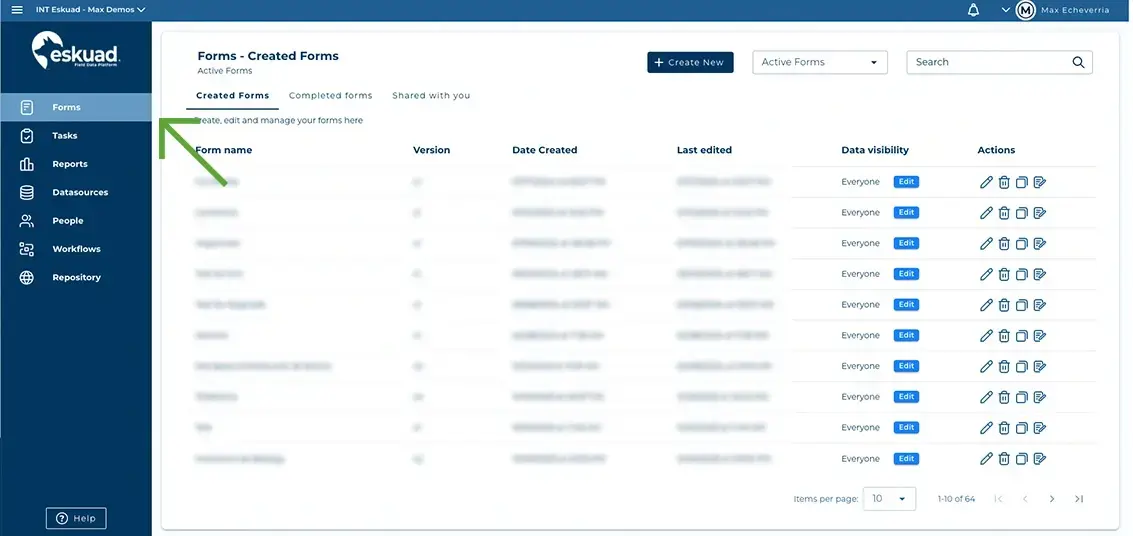
Navigation Menu: On the web application, find the completed forms table by clicking “Forms” in the navigation menu on the left.
-
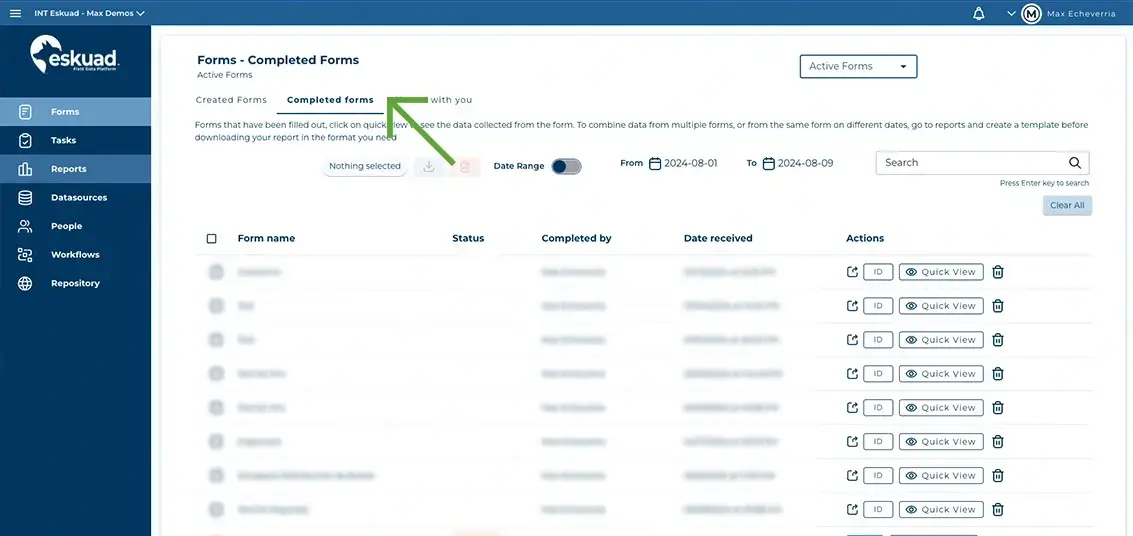
Completed Forms Tab: Inside the “Forms” section, click on the “Completed Forms” tab.
-
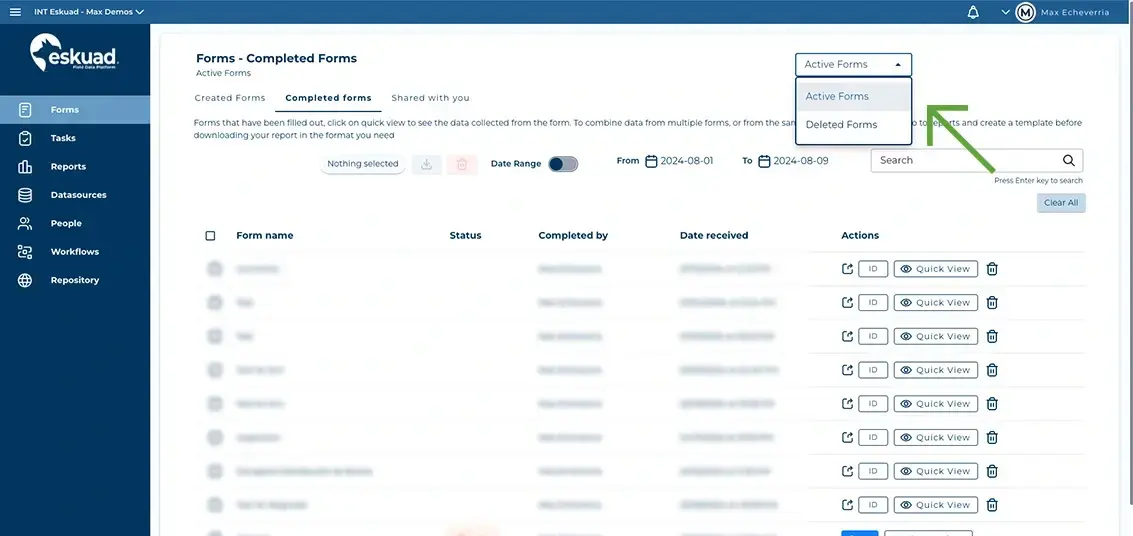
Here, you’ll find a list of all your completed forms. From this menu, you can easily download each completed form individually.
Editing
-
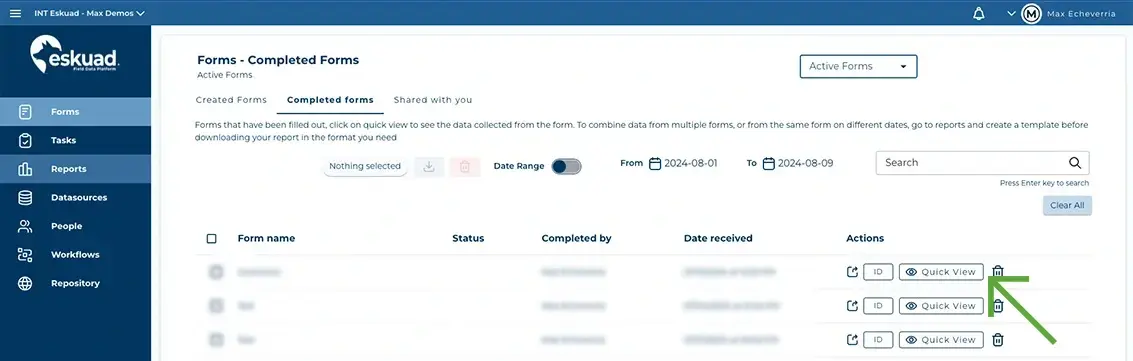
**Quick View:**Quickly review any submitted form instantly
-
On the right-hand items menu, go to forms
-
Go to completed forms
-
Find the form you would like to review, and click “Quick View”
-
-
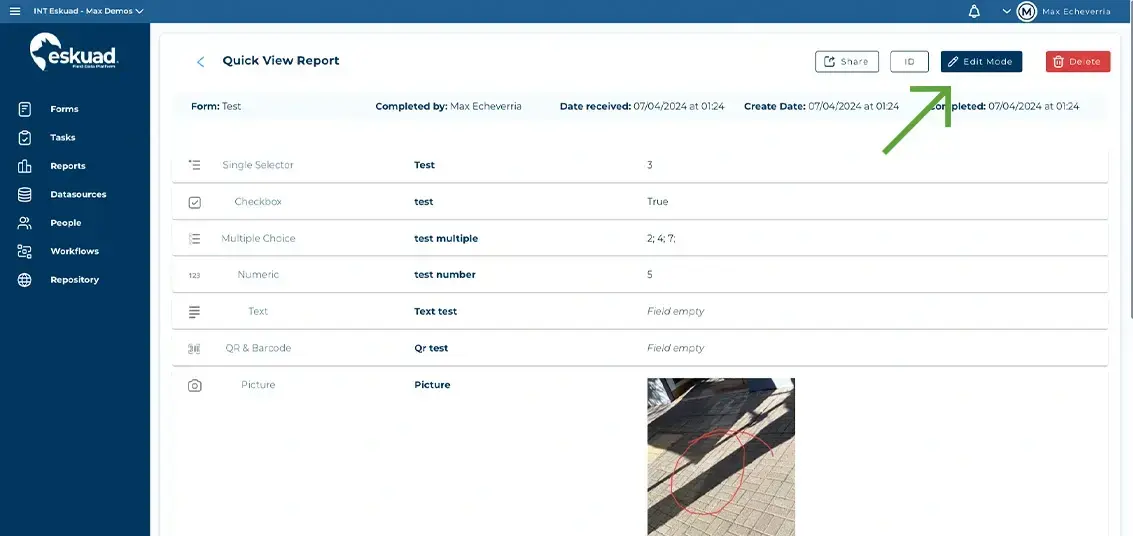
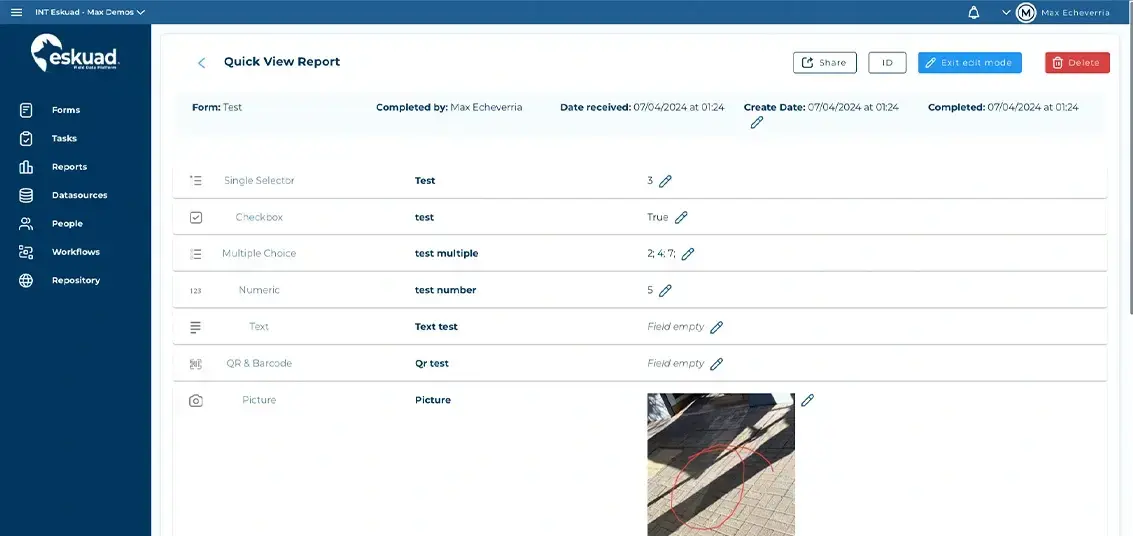
Edit Mode: If you have admin status, you can enter “Edit Mode” to modify eligible fields within the form.
-
On the right-hand items menu, go to forms
-
Go to completed forms
-
Find the form you would like to review, and click “Quick View”
-
Click on the “Edit Mode” button in the top right
-
Searching and Filtering
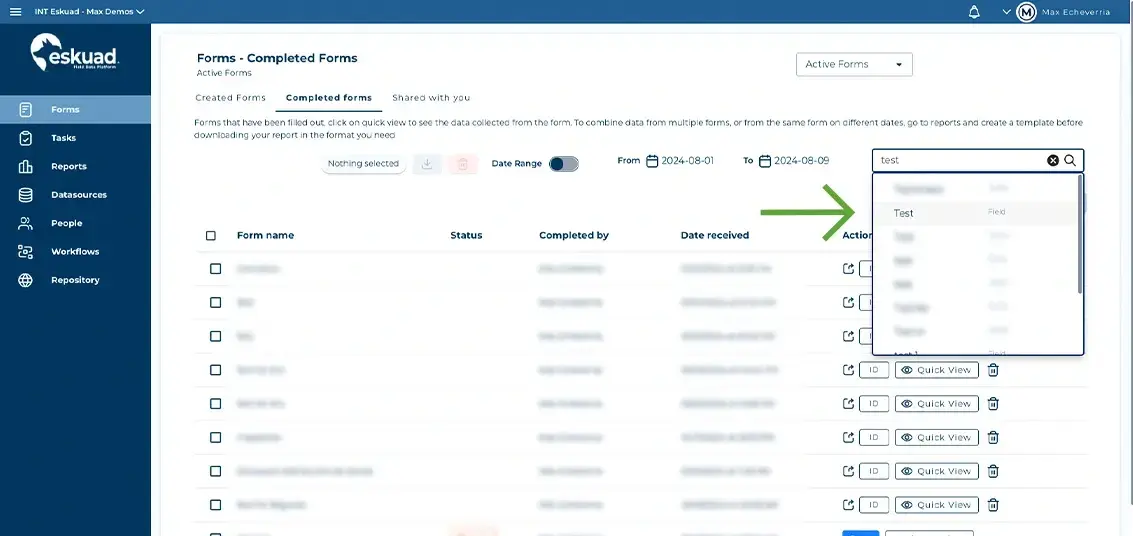
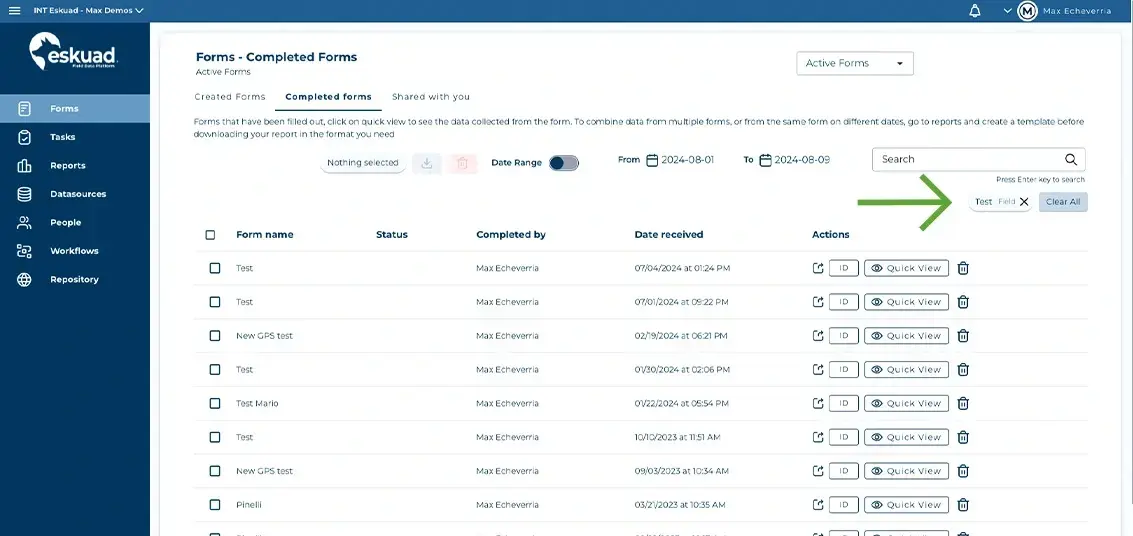
You can find specific records by using the advanced search bar. You can find the record you are looking for by searching for form names, field names, user names, and date ranges. As you add search parameters, they will appear below the search bar. This allows you to filter your results by date or add other search criteria.
Mobile App
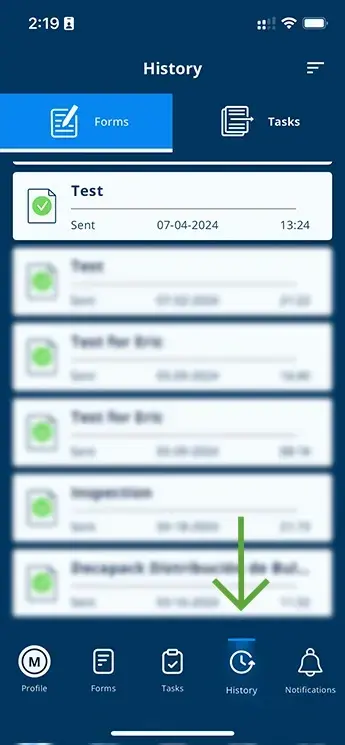
You can also access your form history on the mobile app, providing you with convenient access to your completed forms on the go.
Manual Synchronization
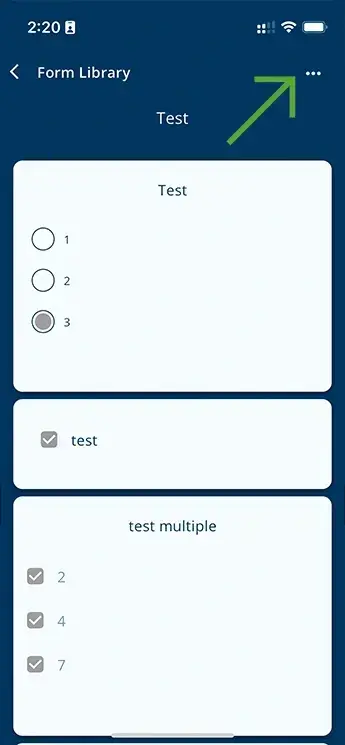
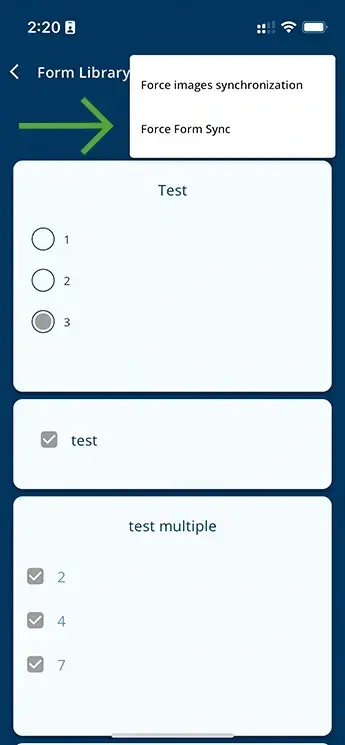
If your form is having trouble synchronizing, or if it has synchronized without the images, you have a few options: Force images synchronization, and Force Form sync. To find these options, in the app go to:
- History
- Select the form you wish to manually synchronize
- Once in the form, click on the 3 dots in the top right (…)
- Click the synchronization option you would like to happen
Email Notifications
Additionally, we’ll send you an email each time you complete a form. This email includes a spreadsheet of your data, ensuring you always have a record of your submissions.
Rest assured, your data is safe and secure throughout the process, and you have multiple options for accessing and managing your completed forms.
If you have any further questions or need assistance with any aspect of Eskuad, feel free to reach out. Your satisfaction and data security are our priorities.