Manual 2 - Invite users
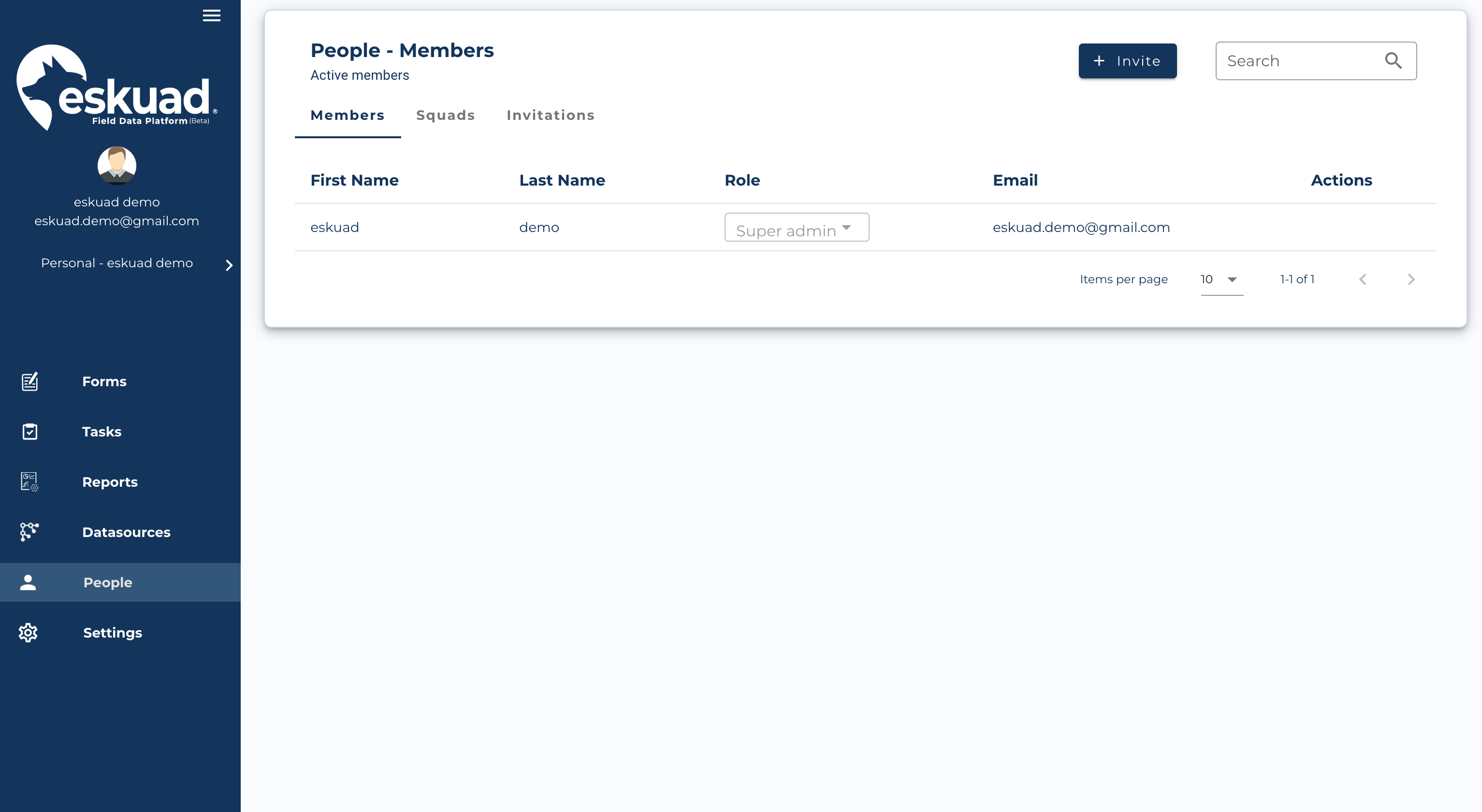
- Go to the web panel and login if you haven’t already: https://app.eskuad.com
- Click Invitations in the menu on the left
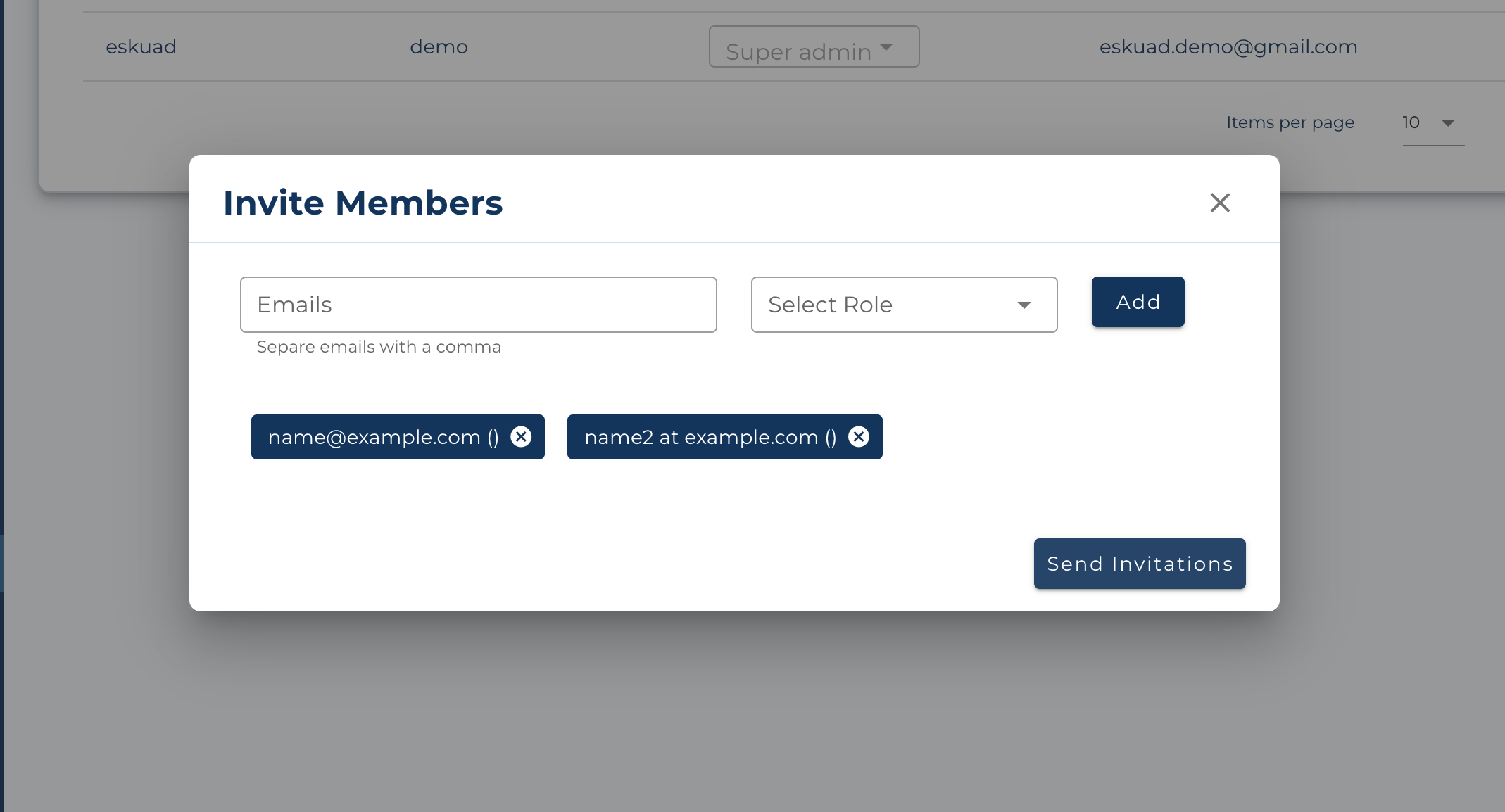
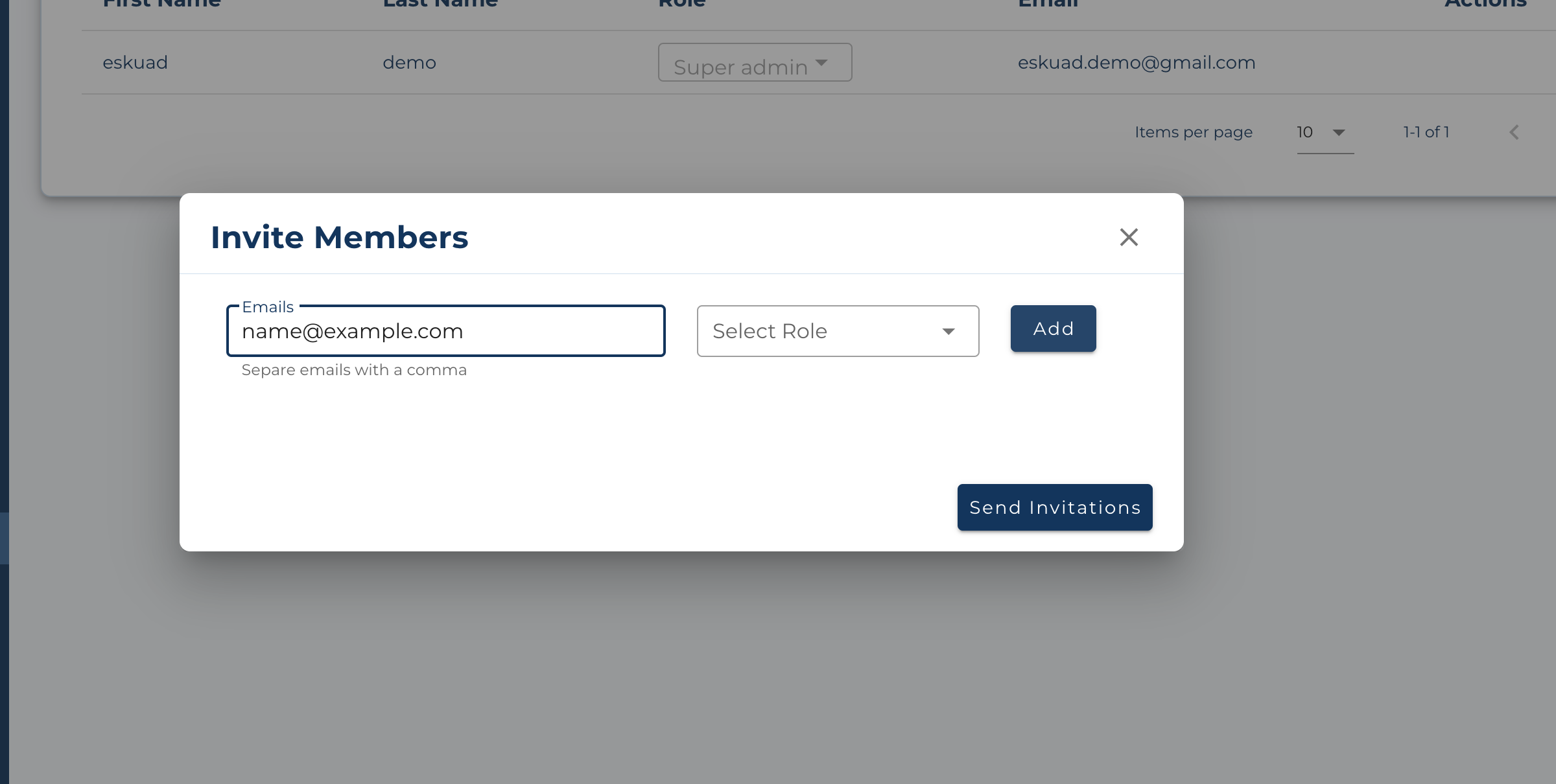
- Add the email, permission role, and data of users you want to invite
-
You can add as many users as you need. To add more you click the invite new button.
-
Send the invitations
-
User can now accept the invitation
-
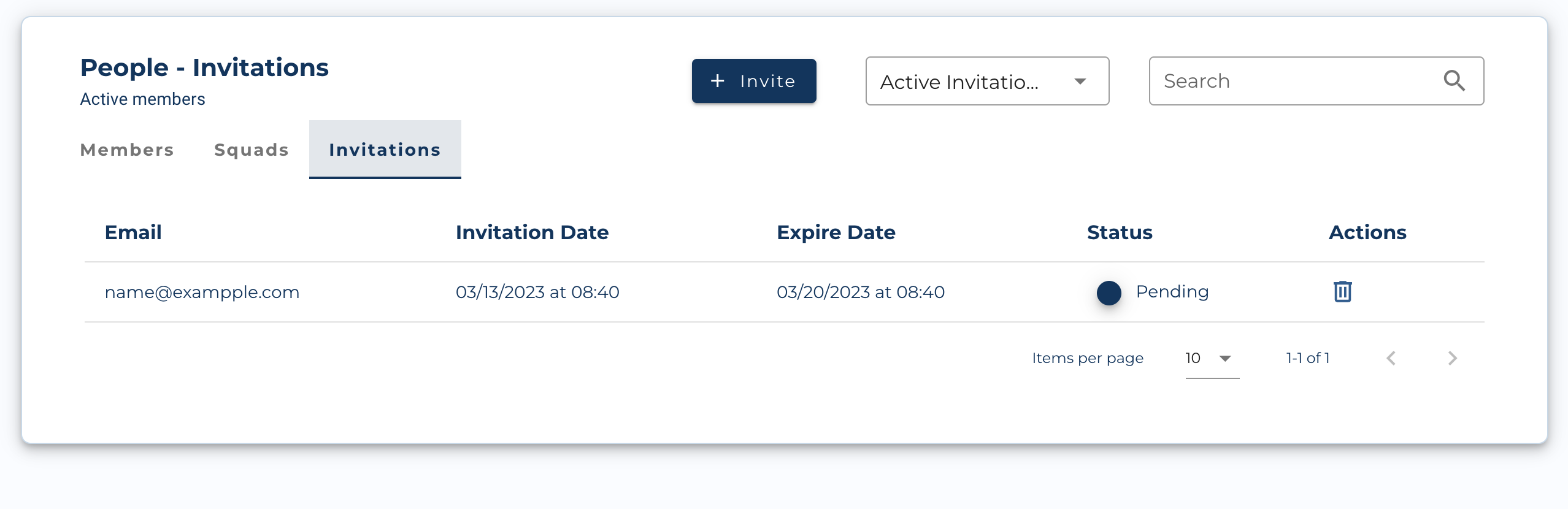
Once the invitation is sent, it will appear in the panel as “Pending” until the user accepts and creates an account.
-
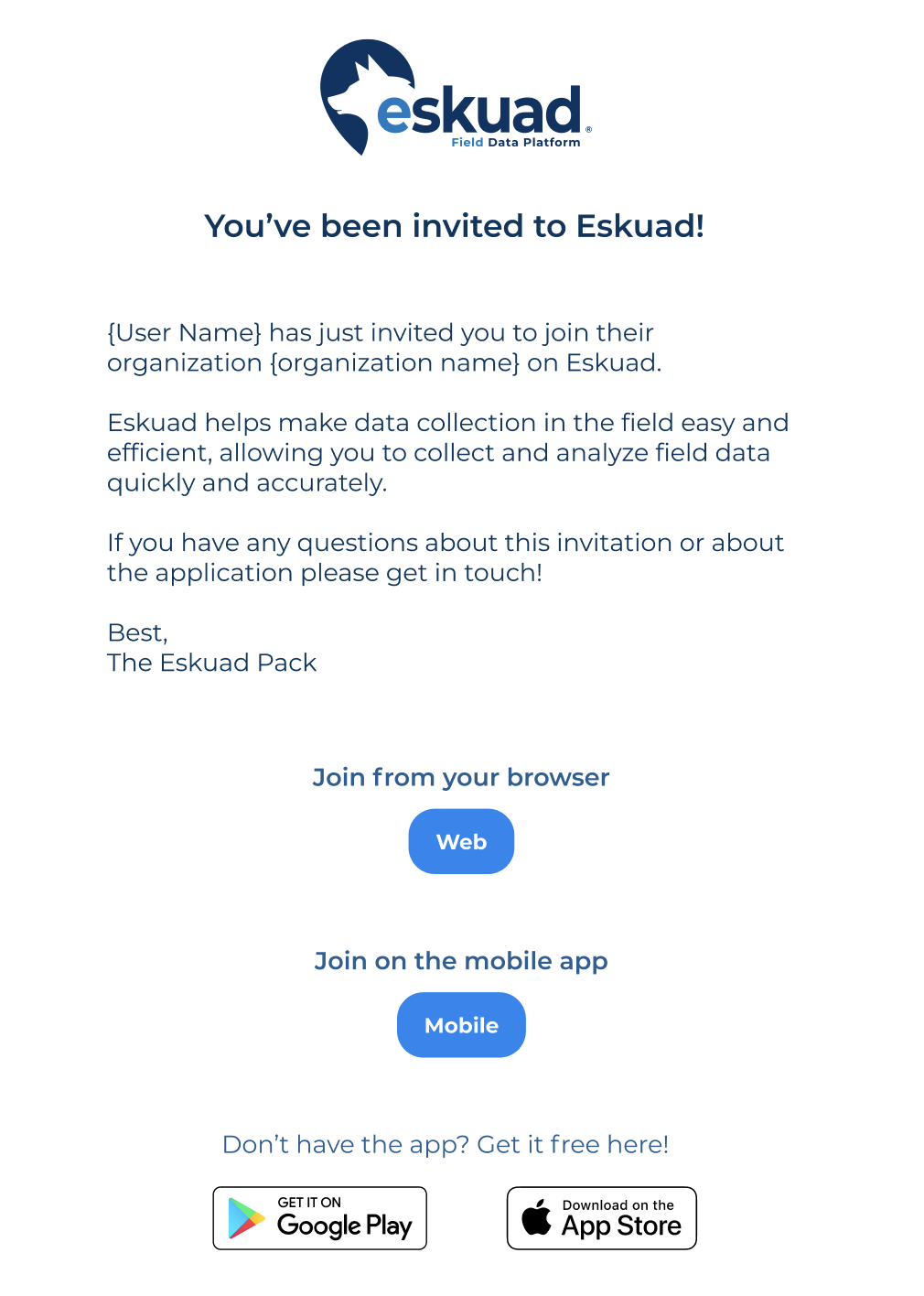
The new user will receive an email with invitation link to join your squad.
-
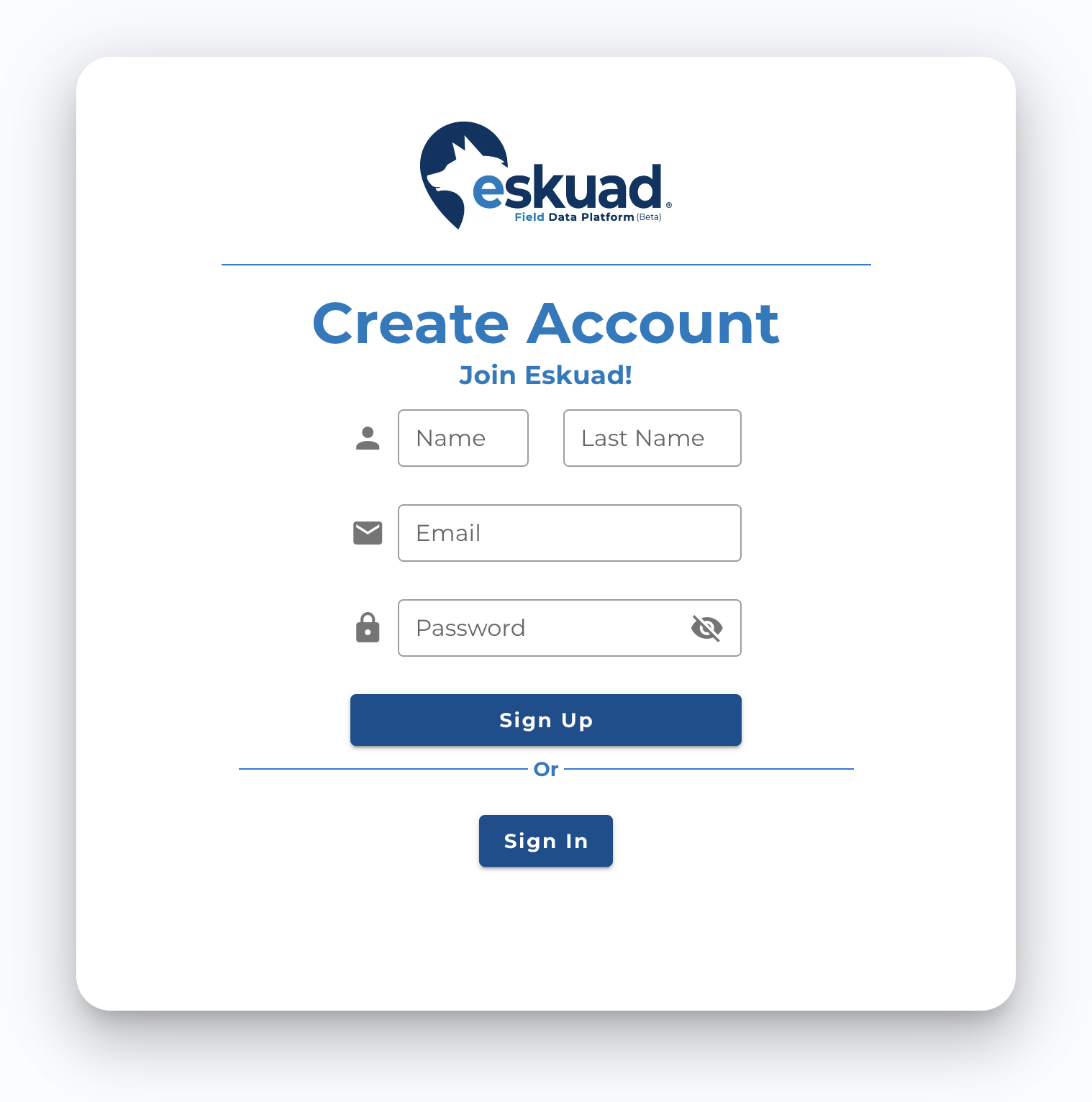
After clicking the link:
-
Users must add a first and last name. Create a password with following criteria: 8 characters, 1 number, 1 letter, and 1 capital letter.
-
-
After accepting the squad invitation
- Once back in the web panel and the invitation is accepted, the user can browse and create forms, assign tasks, view submission schedules, etc. as appropriate.
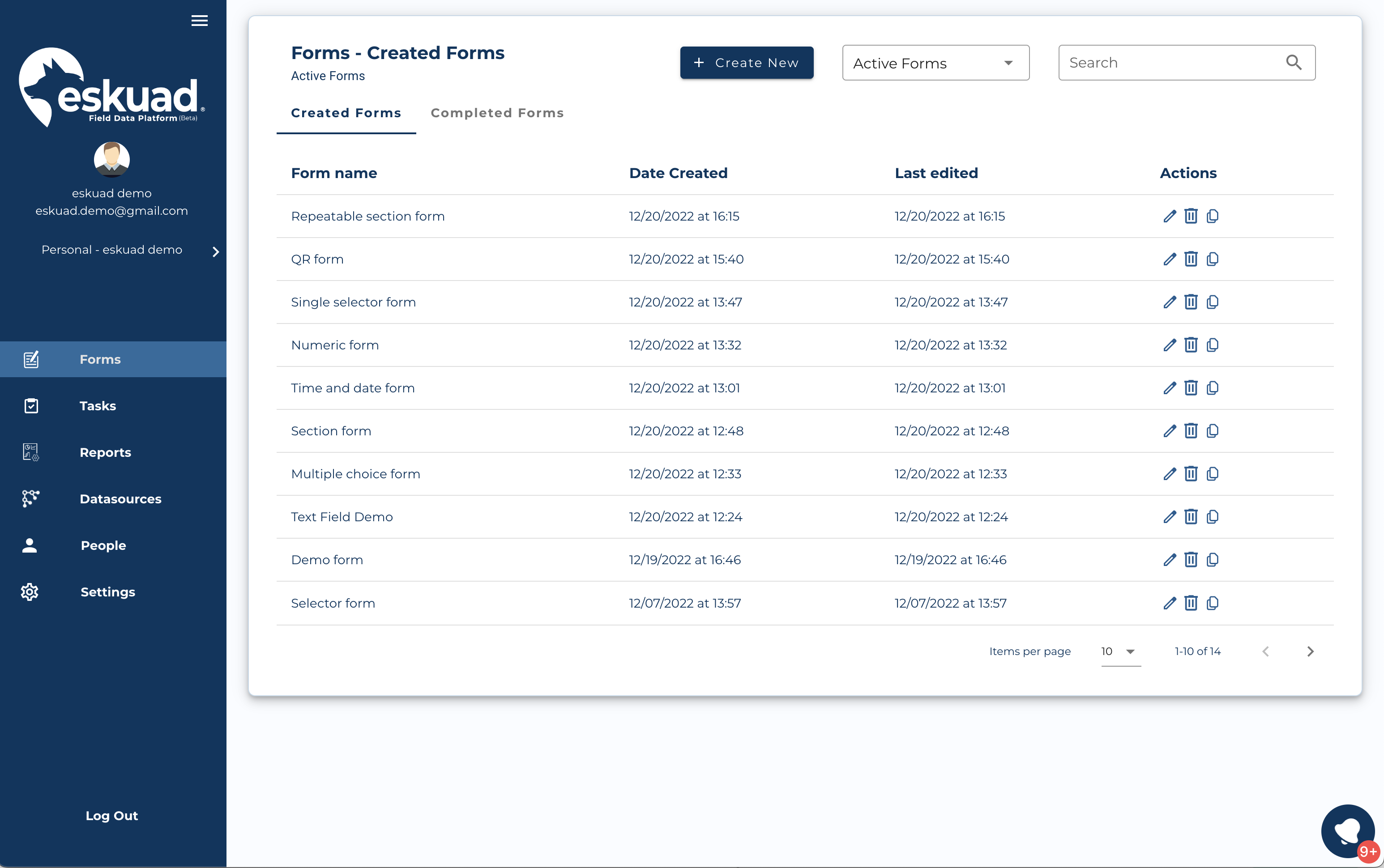
- Once back in the web panel and the invitation is accepted, the user can browse and create forms, assign tasks, view submission schedules, etc. as appropriate.
-
Download the Eskuad application:
- Open the Play store:
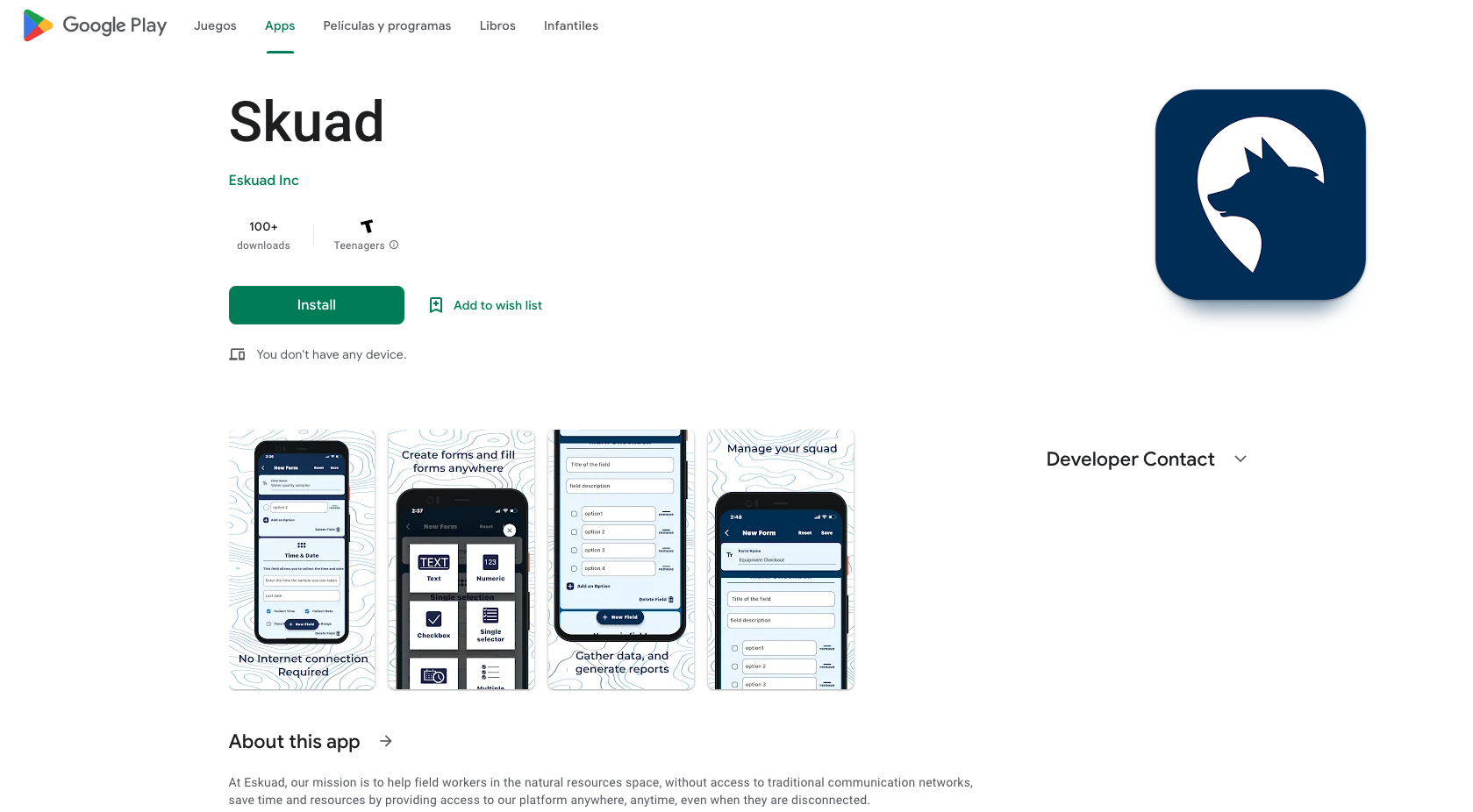
- Open the App store:
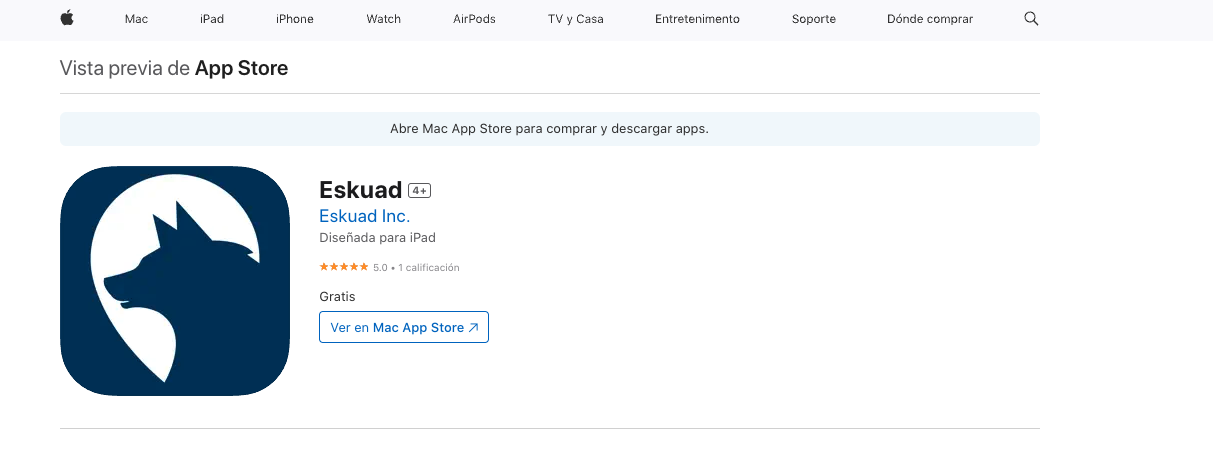
- Open the Play store:
-
Open the application and enter the email and password for the login you just created